
Category: Technical SEO

  • How to Audit Your Website Authority Like an SEO Pro?

    How to Audit Your Website Authority Like an SEO Pro?

    Website authority is basically an SEO concept that is used to represent a domain’s strength, credibility, and trustworthiness in the SERPs. It reflects how capable a site is of performing well in the search engine results based on different factors rather than relying on a single metric. 

    Although Google has never acknowledged website authority as a ranking factor, it is still widely used in the field of SEO. In fact, SEO experts often recommend auditing your site’s authority from time to time. This involves evaluating topical relevancy, domain authority, backlink profile, and many more. 

    When done right, auditing can provide you with a roadmap to improve rankings, improve user engagement, and build long-term trust.

    So, in this blog post, we are going to break down how exactly you can audit your website authority like an SEO professional. 

    How to Audit Your Website Authority Like an SEO Expert

    Here are the things you need to consider when auditing website authority. 

    1. Benchmark Topical Relevancy

    The first thing you need to consider is topical relevancy. It helps determine how well your website demonstrates expertise in the targeted niche or industry. Google tends to prioritize websites that consistently publish relevant content for a specific audience, not those that offer unrelated information. 

    When reviewing topical relevancy, you must pay attention to these three elements: 

    • Content clusters
    • Internal linking 
    • Keyword gap

    Analyze whether your web content is well-organized into relevant topic clusters or not. A good cluster involves a pillar page (broad topic) supported by multiple related articles. Usually, it is said that a broad topic should have at least 8-12 interlinked blogs

    When it comes to internal links, these help search engine crawlers to discover relevant pages, ultimately strengthening the site’s topical authority. So, while auditing, you are required to check if articles contain enough internal links. 

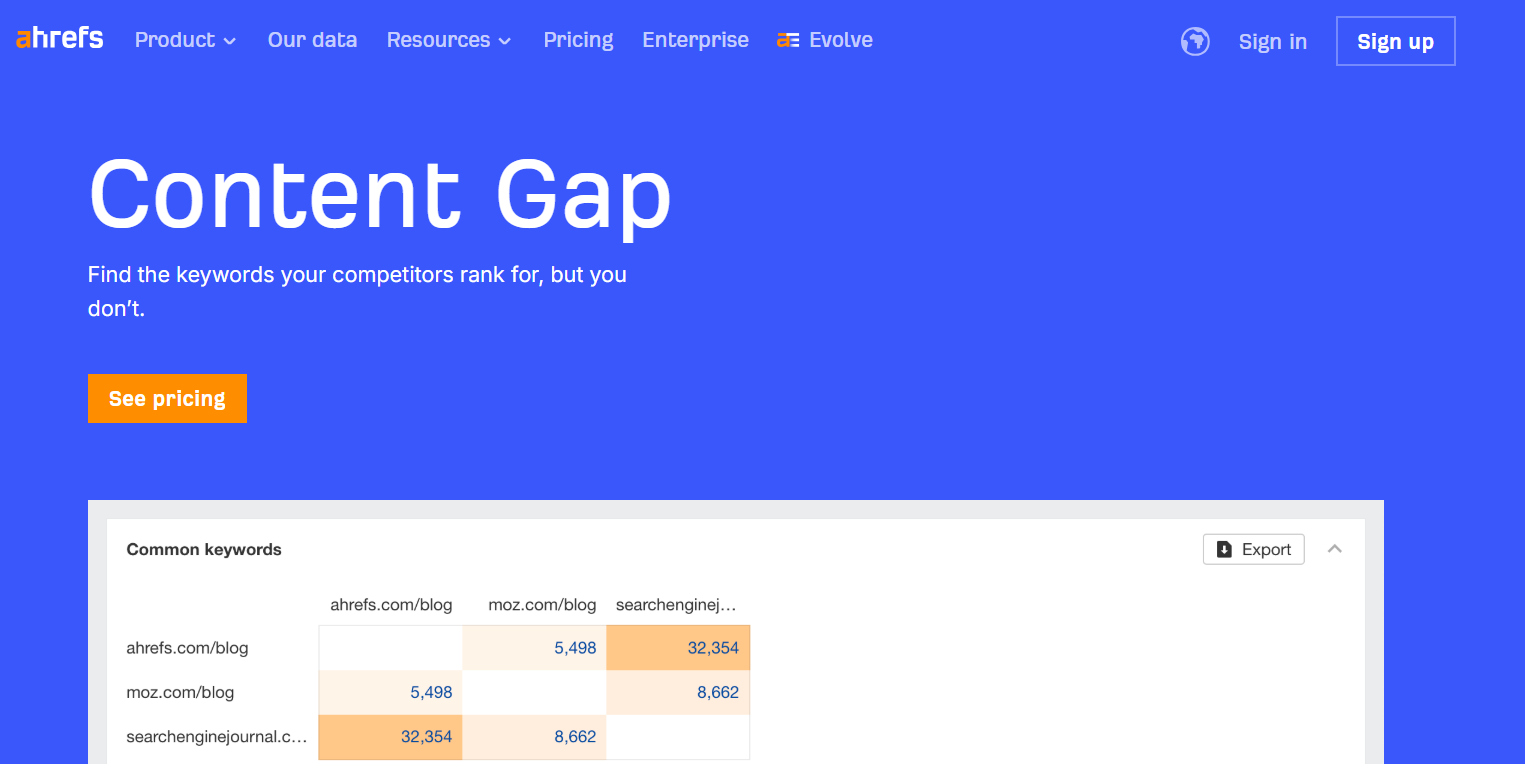
    Finally, identify the keywords that your competitors are using to gain visibility, but you are not. Tools like Ahrefs offer dedicated features to perform keyword gap analysis. 

    Ahrefs content gap screen

    The tool will help uncover missed opportunities within your content strategy, increasing the overall chances of rankings. 

    2. Review Backlink Profile

    Backlinks are widely considered a strong ranking factor, but it is also true that not all links are created equal. A good backlink can take your website’s performance to new heights, while a bad one can do the opposite.

    For this reason, it is considered essential to review the backlink profile when auditing your website’s authority. A good audit focuses on link quality, relevance, and diversity. Here are the things you need to watch out for:

    • First and foremost, determine how many unique websites are linking to your domain. A high number usually indicates a good profile. 
    • Analyze whether the linking websites are relevant to your target niche/industry. A single backlink from a relevant domain carries more weight and value than multiple ones coming from irrelevant sites. 
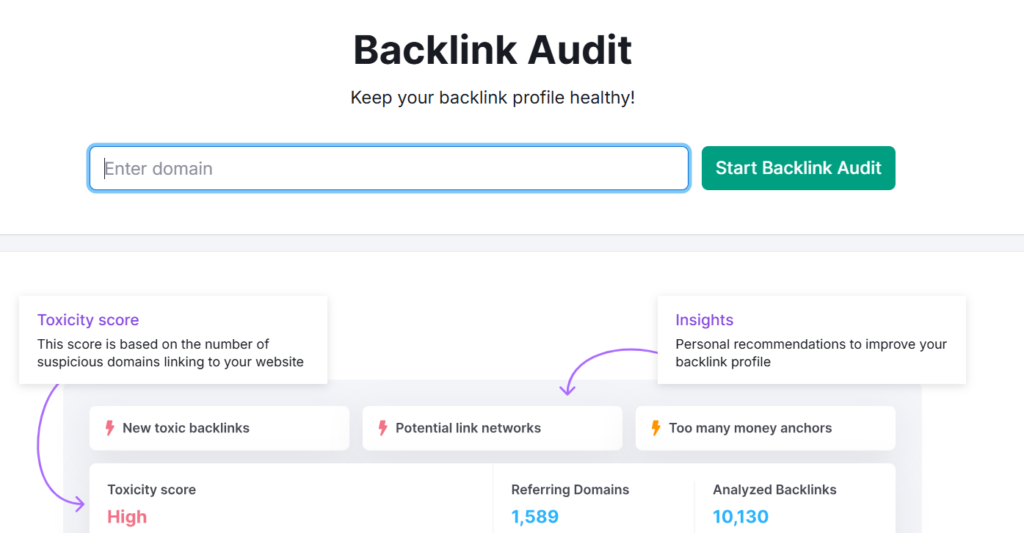
    • Also, pay attention to toxic or low-quality backlinks; these can cause serious harm to your site’s performance. Look for irrelevant domains, generic anchor text, and repetitive links from the same sites. 

    Now, the question is, how can you perform all these at once? The answer is to rely on specialized SEO tools such as Semrush. It will provide detailed insights into a website’s backlink profile, simplifying the auditing process. 

    backlink audit

    Note that, while auditing, the quality of backlinks matters far more than the quantity. 

    3. Check for Domain Authority Score

    Domain authority (DA) is a third-party SEO score ranging from 0 to 100. It simply predicts the ranking potential of a site in the SERPs. It is essential to note that domain authority is not officially recognized as a “Ranking Factor” by Google. Still, it is widely considered a useful metric for auditing site authority. 

    A high score indicates that the site is considered valuable and trustworthy. Whereas a low score means the site is either new or facing difficulties in winning the search engine’s trust. 

    Different DA score ranges are generally interpreted as:

    • 1-20 (low)
    • 20-40 (average)
    • 50-60 (Good)
    • 60+ (Excellent)

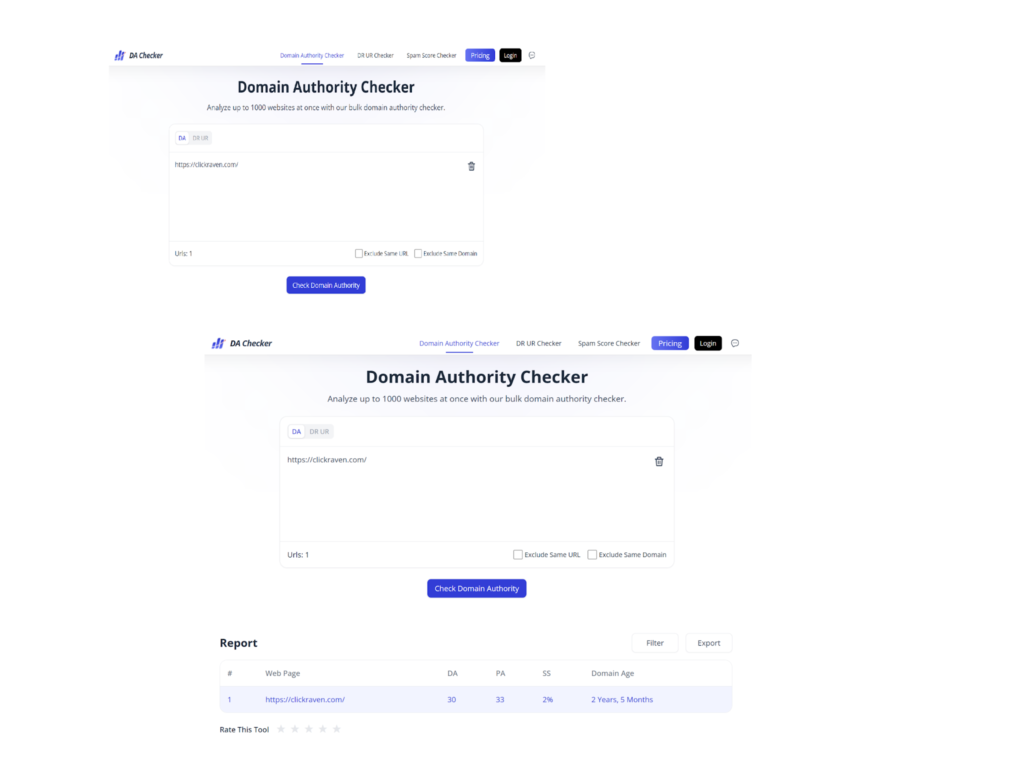
    You can use DA Checker to quickly check the domain authority score of your website. It is free, simple to use, and can process multiple URLs at once. Simply enter the domain address, click the button, and review the results.

    domain authority checker

    Instead of solely focusing on the DA score ranges mentioned above, it’s more useful to compare your score with that of your top competitors during the audit. This gives the number proper context. For example, a DA of 40 might be relatively strong in a low-competition niche, but the same score could be considered weak in a highly competitive space where leading sites have much higher authority.

    4. Check for Trust Signals

    trust signals

    Trust signals also play a key role in either making or breaking your site’s authority in SERPs. These help search engines understand whether your website is credible and trustworthy. So, when performing an audit, also consider these signals.

    Below, we have listed some important trust signals: 

    • About Us and Author Pages: Check if your website is clearly demonstrating who you are, what you do, and who actually creates content for your blog/business site. This will add transparency and also build confidence among both the audience and the search engine. 
    • Editorial Standards: Also, review your editorial standards. A well-written, accurate, and up-to-date content significantly boosts a website’s authority. 
    • Social Proof: Check if you have added endorsements or validations from other brands or satisfied customers. These also indicate the domain’s credibility and authority in the targeted niche.  

    So, these are a few major factors that you should look for when auditing your website for authority like an SEO professional. 

    Wrapping Up

    A PRO-level audit for website authority goes far beyond surface-level metrics (i.e., traffic, average position, etc.)

    It involves reviewing your domain’s topical authority, backlink profile, trust signal, and much more. This blog post has explained all these essential factors in complete detail. 

    Hopefully, you will find the information valuable and interesting!

  • The Overlooked Link Between Site Structure and Topic Performance

    The Overlooked Link Between Site Structure and Topic Performance

    Most people think content optimization is all about keywords and word count.

    But there’s a much bigger piece of the puzzle that hardly anyone talks about…

    Your site structure.

    And if you get it wrong, the best content in the world won’t rank. The SEO teams that have scaled organic traffic predictably for their clients all treat site structure as part of content optimization, not some separate technical chore.

    In this article you will discover exactly why site structure is the silent driver of topic performance and how to fix yours without a developer.

    Here’s what’s coming up:

    1. Why Site Structure Quietly Controls Your Rankings
    1. The Real Link Between Structure And Topics
    1. How To Fix A Messy Site In 5 Simple Steps
    1. Common Structure Mistakes That Tank Performance

    Why Site Structure Quietly Controls Your Rankings

    Think of your website like a filing cabinet.

    When every blog post, product page, landing page is just thrown in willy nilly… Google has no idea how they all fit together.

    And that confusion has a real cost.

    As per Think with Google, 53% of users abandon a website that takes more than 3 seconds to load. Bad structure is often accompanied by bloated navigation, orphan pages, and extra redirects — all things that slow a site down and frustrate visitors before they even read a word.

    So what does good structure actually do?

    • It tells Google what your site is about
    • It passes authority to the pages that need it most
    • It keeps users clicking through to more content
    • It makes every piece of content easier to crawl

    Site architecture really is the foundation of your content optimization efforts. Without it even the best written article will languish on page 8.

    The Real Link Between Structure And Topics

    Now here’s where things get interesting…

    Google does not rank pages individually. It ranks them in the context of your entire site. That means your architecture is telling Google what topics you are an authority on.

    Here’s what that looks like in practice:

    Imagine a site with 20 articles about pool safety. However, they all live as individual blog posts with no relation between them. Google sees 20 disparate pages that cannibalize each other. None of them rank.

    Now go back to those same 20 articles and cluster them around a topic — with a “pillar” page in the centre to which the others link back.

    Suddenly Google sees a library. A proper authority on pool safety.

    That’s a huge shift in how your content gets valued.

    This is why two sites with the same content quality can have vastly different rankings. One is organized. The other is a haphazard heap of posts.

    How To Fix A Messy Site In 5 Simple Steps

    Ready to clean things up? Here’s the exact process to follow.

    Step 1 — Audit Your Existing Content

    Start with a simple list of every page on the site.

    Look for:

    • Pages that cover the same topic twice
    • Pages with no internal links pointing to them (called “orphan pages”)
    • Short, thin pages that don’t help anyone

    Once you have the list, the patterns jump out pretty quickly.

    Step 2 — Pick Your Pillar Topics

    Pillar topics are the broad subjects your whole site is about.

    For a pool safety store, pillars might be:

    • Pool fencing
    • Pool alarms
    • Pool maintenance

    Keep it to 3-5 pillars. Any more and your authority gets watered down.

    Step 3 — Map Your Cluster Pages

    Every pillar needs supporting articles.

    These are your focused, long-tail topics that answer real user questions. For a “pool fencing” pillar, cluster pages would be:

    • Best pool fence materials
    • Pool fence gate requirements
    • Pool fence height regulations

    Cluster pages should all have a link back to the pillar with keyword rich anchor text. Easy, yes?

    Step 4 — Fix The Internal Linking

    This is the step most people skip… And it’s the most important one.

    Browse through each cluster page and insert 2-4 internal links to other related pages. The anchor text should clearly tell the reader what they will be clicking on.

    Avoid generic anchors like:

    • “Click here”
    • “Read more”
    • “Learn more”

    Step 5 — Trim The Fat

    Remember those thin, duplicate pages from Step 1?

    Time to either consolidate them into cluster pages, or to just cut them. The less pages a site has, the faster it will crawl, the better it will rank and the easier it will be to optimize individual pieces of content in the future.

    Lots of site owners get nervous about deleting pages…

    But less really is more.

    Common Structure Mistakes That Tank Performance

    Despite a sound understanding of the cluster model, human error is still the most common reason for botched cluster detonations. Below are the most common errors.

    Flat Site Architecture

    A flat site has everything one click from the homepage.

    Sounds good in theory… Unless you want to kill topic authority. Google has no idea what’s important because every page is the same.

    The fix: Group related pages into clear categories that live under your pillar pages.

    Broken Or Missing Internal Links

    When there are no links to a page, it can be difficult for Google to find the page.

    Search Engine Land published data from the 2025 Web Almanac which found that robots.txt error rates declined to about 13%, an indicator that website operators are finally listening when it comes to crawlability. However, there are still many websites out there with orphan pages that have been untouched for years.

    Run a crawl with any free audit tool and fix the broken links first.

    Cannibalization

    This is when two pages on a site target the same keyword.

    They end up competing against each other… And both lose rankings.

    The solution is easy — choose the better page, merge in its contents, and redirect the loser to the winner.

    Final Thoughts

    Site structure is hands down the most overlooked part of content optimization.

    Most people get hung up on word counts, headings, keywords etc. If the skeleton is wrong though, it’s all irrelevant. Google can’t rank a page it can’t comprehend.

    Luckily, fixing site structure doesn’t need to be complicated:

    • Audit what’s already there
    • Pick your pillars
    • Build out your clusters
    • Link everything together
    • Trim the dead weight

    Do that and the difference in rankings typically appears in a few months. And the best part is it’s not a one time hack. Good structure compounds. Every new piece of content you publish will perform even better.

    So take a look at your site today. What’s the first thing to change?

  • Image SEO: How to Optimize ALT Text, Size, and Load Speed (Without the Tech Headache)

    Image SEO: How to Optimize ALT Text, Size, and Load Speed (Without the Tech Headache)

    Most people don’t think of images when they hear “SEO.”

    But here’s the truth: optimized images can boost your rankings, speed up your website, and even help you show up in Google Images.

    That means more clicks, more traffic, and a better experience for your visitors.

    In this guide, we’re not just going to throw buzzwords at you. We’ll walk through how to optimize images for SEO step-by-step, like you’re sitting next to someone explaining it over coffee.

    Whether you’re running a blog, a small business website, or an online store, this guide is for you.

    1. What Is ALT Text (and Why Should You Care)?

    Imagine you’re blind and using a screen reader to browse the web. When it gets to an image, it reads a short line of text that tells you what’s in that image. That line is the “ALT text.”

    But screen readers aren’t the only ones reading it. Google uses ALT text to understand what your images are about. And if it can’t understand your images, it won’t show them in search results.

    Why ALT Text Matters:

    • It makes your site accessible for visually impaired users (a legal and ethical must!)
    • It gives Google extra context for ranking your pages
    • It helps your images appear in Google Image search, driving extra traffic

    How to Write Great ALT Text:

    1. Be descriptive: Describe exactly what’s in the image.
    2. Be concise: You don’t need a paragraph. One sentence is plenty.
    3. Be natural: Include keywords only if they make sense. Don’t stuff them in.

    Examples:

    • ❌ image123.jpg
    • ✅ close-up of a chocolate cake with strawberries on top

    How to Add ALT Text:

    • In WordPress: When uploading an image, look for the “ALT text” field
    • In HTML: Add alt=”your description here” inside the <img> tag

    How to Check Your ALT Text:

    • Right-click the image > Inspect (in Chrome)
    • Look for alt=”…” in the image code

    2. How (and Why) to Compress Your Images

    Ever been on a site that loads painfully slow? Big, bloated images are often the cause.

    Image compression reduces the file size so your site loads faster—without making the image look ugly.

    Why This Helps SEO:

    • Google uses site speed as a ranking factor
    • Faster pages keep users from bouncing
    • Smaller images save bandwidth for mobile users

    Tools to Compress Images (Before Uploading):

    WordPress Plugins That Do It Automatically:

    • ShortPixel
    • Imagify
    • Smush

    Pro Tip:

    Always compress before uploading. Uploading large images and relying only on plugins means wasted space and processing time.

    How to Test If Images Are Too Large:

    3. Choosing the Right File Format (It Actually Matters)

    Not all image formats are created equal. Some are great for photos, others for simple graphics.

    Common Formats:

    • JPEG/JPG: Great for detailed photos, keeps file size small
    • PNG: Best for logos or graphics with transparency (but bigger file sizes)
    • WebP: Modern format that’s smaller and high-quality (use if supported)

    What to Do:

    • Use JPEG for photos
    • Use PNG for icons, logos, and transparent backgrounds
    • Use WebP whenever possible—it’s lighter and loads faster

    Most image optimization tools let you convert formats easily.

    Bonus Tip:

    Don’t upload screenshots as PNG if they’re just full-color photos. Convert them to JPEG.

    4. Resize Images to Match Their Display Size

    Let’s say your site shows product photos at 600px wide. But you upload a 3000px-wide image. That’s 5x bigger than needed.

    Your page wastes time loading extra pixels nobody ever sees.

    Why This Matters:

    • Large images waste bandwidth
    • They slow your page down
    • Visitors on slow internet will hate it

    How to Fix It:

    • Use a tool like Canva, Photoshop, or even Preview (Mac) to resize images before upload. If your image needs more canvas space before resizing, an image extender can expand the borders with AI before you finalise dimensions
    • Aim for display size ×2 (for high-res screens)

    Example: If your layout shows images at 800px, upload them at 1600px max

    How to Check:

    • Right-click > Inspect > look at the actual display size vs file size

    5. Enable Lazy Loading for Images

    Lazy loading means your images won’t load until someone scrolls to them.

    This speeds up the first view of your page—which Google loves.

    Why Use Lazy Loading:

    • Improves Core Web Vitals (important for SEO)
    • Loads only what’s needed when it’s needed
    • Speeds up the “above-the-fold” experience

    How to Implement Lazy Loading:

    • In HTML: Add loading=”lazy” to your <img> tags
    • In WordPress: Use plugins like:
      • WP Rocket
      • Autoptimize
      • LiteSpeed Cache

    How to Test Lazy Loading:

    • Open a page with lots of images
    • Open dev tools > Network tab > Refresh
    • Scroll slowly—images load as you scroll

    Quick Checklist (Print or Save This):

    • ✅ Write ALT text for every image
    • ✅ Compress images before uploading
    • ✅ Use JPEG for photos, PNG for logos, WebP when possible
    • ✅ Resize images to actual display size (x2 for retina)
    • ✅ Turn on lazy loading for images

    Final Thoughts

    Images are often the heaviest part of a webpage—and the most overlooked when it comes to SEO.

    But now you know how to:

    • Make them faster
    • Make them readable to Google
    • Make them work for your rankings, not against them

    Best of all? You didn’t need to learn any code.

    If your site is still slow or your images are unoptimized, start small. Pick one of these tips today, and do another one tomorrow. SEO is about stacking small wins—and image SEO is an easy place to start.

    Need help with your specific site? Let me know. I’ll walk you through it.

  • What Are the Key Metrics for Website Performance?

    What Are the Key Metrics for Website Performance?

    A page can look fast on your laptop at lunch, then feel slow on a phone at night. One heavy image, one third party script, and one crowded network can change everything. When that happens, users do not wait, they leave, and they rarely explain why.

    Speed checkers help because they turn a “feels slow” complaint into numbers you can track. Teams that already plan work in Jira and document changes in Confluence often move faster. If you need help setting those systems up well, an atlassian partner can support the process without changing your product goals.

    User Centered Speed Metrics That Match What People Feel

    People judge speed by what appears first, what stays stable, and what responds quickly. That is why modern reports focus on perceived loading, not just total load time. A homepage can finish loading late, yet still feel fine if the main content appears early.

    Core Web Vitals are a common reference for these experience measures across many tools. Harvard’s overview breaks down LCP, CLS, and interaction timing, plus example thresholds teams often use. 

    Largest Contentful Paint tracks when the biggest visible content is shown for the first time. Cumulative Layout Shift tracks unexpected movement, like buttons sliding under your thumb during loading. Interaction timing reflects how quickly the page responds when a user clicks, taps, or types.

    If you only watch one screen, check these three signals first, because they map to user frustration. They also support SEO work, because search engines prefer pages that feel stable. When your speed checker shows regressions, these numbers help you explain the damage clearly.

    Network And Server Metrics That Set The Ceiling

    Even a light page can feel slow when the server takes too long to answer requests. Time to First Byte is often the first warning sign, because it reflects server delay and network delay. High latency is common when content is far from the user, or caching is weak.

    Round trip time matters most on mobile networks, where each request adds waiting time. Many sites load dozens of assets, so slow handshakes stack up quickly. A better cache policy, a CDN, and fewer redirects can reduce this waiting without changing design.

    Server response time also depends on database work, template rendering, and third party calls. If your API endpoint pauses, your page pauses, even if the front end code is clean. This is where back end owners and front end owners need shared dashboards and shared definitions.

    Teams often handle this well when work is tracked as performance tickets, not vague “speed tasks.” A simple Jira issue can capture the failing endpoint, the measured TTFB, and a target range. That makes fixes easier to review, test, and ship without endless debate.

    Page Weight, Requests, And What Your Browser Must Do

    Page size is a blunt metric, yet it is still useful for quick diagnosis. A 6 MB page can load acceptably on broadband, then crawl on a mid range phone. It also costs more data for users, which can matter outside major cities.

    Request count is just as important, because each request adds overhead and competition for bandwidth. Many speed tools break down images, fonts, scripts, and third party tags in separate buckets. Those buckets point to the fastest wins, like compressing hero images or removing unused libraries.

    Rendering cost is the hidden part, because a browser can download fast and still stall. Heavy JavaScript can block the main thread, delaying taps and scrolls on mobile devices. That is why performance scores sometimes stay low even when page size looks acceptable.

    The US Web Design System glossary explains several performance terms used in audits and testing. It is helpful when teams need shared language for metrics like perceived performance and paint timing. 

    If you want a quick checklist to audit page weight problems, keep it simple and consistent. Track the same pages each week, so you spot trends instead of one off noise. Then tie each finding to a clear change request and owner.

    • Total page weight on mobile, measured on repeatable runs with the same connection profile each time.
    • Number of requests, split by images, scripts, fonts, and third party tags for clear ownership.
    • Image formats and compression settings, including hero images that load early and drive LCP.
    • JavaScript execution time, especially long tasks that block taps and scroll on slower devices.
    • Font loading behavior, since late font swaps can cause layout shift and messy reading. Before diving into optimization strategies, it’s essential to assess your website’s speed with a website speed test. Such tools will give you a comprehensive breakdown of load times, request sizes, and server delays that are affecting the user experience.

    Reliability, Monitoring, And Making Performance Work Stick

    Speed is not the only performance signal users notice, because errors feel like slowness too. Track uptime, error rate, and failed requests alongside load metrics in your reports. A fast page that throws a 500 error still fails the user completely.

    Real user monitoring helps because lab tests miss real devices and real networks. While metrics tell you what is happening, a professional UX audit can help you understand how these performance gaps specifically frustrate your users and where they abandon the journey.

    Lab scores are still useful, but they work best as a baseline and a regression alarm. RUM data shows you what most users see, not what your best laptop can do — which is especially important for businesses who are looking for Calgary web design, where site speed, stability, and user experience play a big role in attracting and converting local customers.

    This is also where process matters as much as code quality. A Confluence page can hold your metric definitions, targets, and change log for each release. Jira tickets can link to that page, so every fix has a reason, a measurement, and a rollback plan.

    When teams use that pattern, performance stops being a last minute panic before launch. It becomes part of sprint planning, code review, and release checks with clear gates. Over time, the site stays steady because work is tracked, explained, and repeated.

    You do not need dozens of numbers to manage performance well. Pick a small set, measure them the same way every week, and assign ownership. When a metric moves, connect it to code changes, content changes, or infrastructure changes quickly.

    Your practical takeaway is straightforward: track experience metrics, server delay, and page weight together, not in isolation. Put each metric into a repeatable workflow, so fixes are visible and easy to verify. With steady measurement and steady work habits, speed becomes predictable instead of surprising.

  • How to Scale CX Without Hurting Your Core Web Vitals

    How to Scale CX Without Hurting Your Core Web Vitals

    Scaling your business means you want to reach more people every day. You might add new tools to your site to help these new visitors. It is exciting to see your brand grow and offer more value. You must keep an eye on how these changes affect your site speed.

    A slow site can make users leave before they see your products. Balancing growth with speed is the key to a great experience for everyone who visits your pages.

    Managing Core Web Items And Growing

    Adding new features can make your website feel heavy to a browser. Each new script or image takes up space and time to load. If you are not careful, your site could start to feel sluggish.

    Users expect a site to load fast on every device they use. If they have to wait, they might go to a competitor instead.

    You should check your site scores often to see how new updates change things. Keeping a fast site helps you stay ahead of others in your field.

    Scaling Support Infrastructure

    Helping a lot of clients is a difficult endeavor. To stay quick, many teams migrate their support systems to the cloud. This keeps heavy traffic from slowing down your local servers. It’s a clever method to keep things running smoothly during busy times.

    Placing these tools in the cloud keeps your site light. By utilizing amazon connect and similar technology, you can handle thousands of calls without adding stress to your servers. A strategy that aids in keeping each visitor’s experience quick.

    In a matter of minutes, you provide your agents with additional functionality.

    Optimizing Visual Performance

    The first thing a person sees is the top of your page. If a large banner or video takes too long to show up, the page looks empty. A technical site mentioned that 2.5 seconds is the ideal time for the largest content element to become visible.

    Large files are usually the main reason for slow loading times. You can shrink your images without losing any of their quality. Using modern file types helps the browser load things much faster. Your visitors will appreciate a site that feels ready the moment they click a link.

    Improving Response Times

    Speed is not just about how fast a page shows its pictures. It is about how the site acts when a user clicks a button. One design blog noted that newer metrics now measure how instantly a site reacts when a user clicks an element.

    When a site is busy running scripts, it might ignore a user’s tap. You should try to keep your background tasks small and fast. A responsive site builds trust with your visitors. It keeps them moving through your site without any frustration.

    Operational Design Systems

    Building new pages can lead to a lot of messy code over time. If every team uses its own style, the site becomes harder to manage. A recent state report shared that unified design systems help organizations scale digital tools with fewer errors.

    A good design system uses the same code for buttons and menus across the whole site. It saves a lot of data and makes every page feel familiar. Your team can work faster and keep the site speed high for every user. Consistency is a great way to grow your brand.

    Strategies For Maintaining Speed

    You should always have a plan for keeping your site healthy. Regular tests can show you where your site is starting to slow down.

    It is better to fix a small issue now than a big problem later. Staying on top of these tasks will help your site stay fast. Your customers will have a better time finding what they need, and they will come back again.

    Here are a few ways to keep your site at peak performance:

    • Test your page speed after every major update you make.
    • Limit the number of external apps you use on your home page.
    • Keep your code clean by removing any old or unused files.
    • Use a $0 budget tool to track your scores throughout the week.

    Monitoring these factors helps you grow without losing speed. You can add more value to your users and keep your site snappy. It is a win for both your team and your customers. A healthy site is the backbone of a growing digital business.

    Growing your presence online is a sign of a healthy business. You can provide better service and reach new heights with the right tools.

    Just make sure to keep performance at the center of your plans. A fast and responsive site is the best way to show your customers that you value them.

  • On-Page SEO Checklist: A Comprehensive Guide for 2026

    On-Page SEO Checklist: A Comprehensive Guide for 2026

    Your website can have great content, but if it’s not structured, visible, and easy to navigate, it will struggle to reach the right audience.

    Believe it or not, many sites online lose traffic and engagement, despite having potential, just because search engines and users can’t fully understand their pages.

    Need a fix?

    Honestly, the only way to resolve this issue is by working on your on-page SEO.

    This includes fixing key elements such as headings, URLs, meta tags, internal links, in short, every visual detail that shapes user experience and search visibility.

    The On-Page SEO Checklist for 2026

    The following checklist highlights the most important on-page SEO practices you should implement in 2026 to improve visibility, enhance user experience, and achieve better search rankings.

    1. Optimize Page Titles and Meta Descriptions

    Remember, your page title and the meta description are the first things that users see as they come across your page.

    So, the very first thing you need to do is keep the titles under 60 characters and make sure to include your primary keyword naturally in the heading.

    Moreover, your meta description should not go over 150–160 characters.

    Avoid keyword stuffing. A clear, descriptive, and appealing snippet improves click-through rates and signals relevance to search engines.

    Titles and meta descriptions set the foundation for strong on-page SEO.

    2. Use Header Tags Strategically

    Headings in any content work as signposts, guiding the readers and the search engines to what the content is about and what to expect next.

    Therefore, if you want to boost your content engagement, you have to structure your headings smartly.

    For instance, the H1 tag is only used once, for the main topic. H2s are for subtopics, while H3s help break down detailed points under H2s.

    Properly structured headers improve readability, enhance accessibility, and help search engines understand your content hierarchy.

    Each header should be descriptive and include relevant keywords naturally, without forcing them.

    3. Focus on High-Quality, Original Content

    Content is the backbone of on-page SEO.

    Therefore, if you want to improve your website’s chances of obtaining top ranking, then it’s inevitable to write informative, valuable, and original content that addresses user intent.

    Avoid copying or duplicating text from other sites.

    Instead, make sure to share your own knowledge, thoughts, and ideas. Trust me, when you provide users with unique insights and actionable advice, this ultimately enhances your credibility, builds trust, and improves the page authority.

    One effective way to confirm originality is to use an advanced plagiarism checker. Such a tool quickly verifies that your content is unique, helping you avoid penalties and maintain credibility while providing fresh insights for readers.

    4. Optimize URL Structure

    When optimizing your content, a main point you need to consider is to pay special attention to how you format your URLs. Remember, the URLs need to be short, descriptive, and easy to read if you want them to actually be user-friendly and shareable.

    Moreover, make sure to include your primary keyword in the URL, but don’t overload it.

    Similarly, avoid unnecessary numbers, symbols, stop words, or anything you think will affect clarity.

    Wondering why even URLs matter?

    All because if your URLs are clean, it will be easier for the readers to remember them. Thus, this ultimately will improve user experience, make sharing easier, and signal relevance to search engines.

    5. Improve Internal Linking

    Internal links are essential to build connectivity between related pages of a website.

    They help you guide the readers through additional relevant content. Thus, you can utilize them to distribute page authority across your site and boost your content visibility.

    Not only this, but this approach also helps search engines discover and index pages more effectively.

    Along with this, another important practice you need to follow is to use descriptive anchor text that clearly indicates the linked page’s topic.

    Avoid over-linking or using generic phrases like “click here.” For instance, a real estate site linking with descriptive anchor text, like “tiny house for sale Illinois” is far more effective than a vague “learn more” link.

    Make sure to adjust the link strategically into your content so it becomes a part of the writing.

    Trust me, strategic internal linking increases page views, improves session duration, and helps search engines understand your website’s structure and the relationship between pages.

    6. Optimize Images and Multimedia

    You can never just make the readers engage with your content by only providing them with text-based information.

    They need something more interactive and visually appealing.

    So, if you want to improve your website’s on-page SEO, make sure to incorporate images, videos, and infographics into your content.

    This approach offers two main benefits.

    Firstly, it makes your content more appealing, convincing the readers to stay for longer.

    Moreover, sometimes visuals can clarify complex information that words fail to explain clearly.

    Thus, they ultimately boost the comprehension and retention of your writing.

    Therefore, when formatting content, add images, videos, and other media to it.

    Additionally, make sure to add descriptive filenames and alt text with relevant keywords to help search engines understand your visuals.

    7. Enhance Page Speed and Mobile Friendliness

    The way your page responds and whether your site is appropriate for mobile users are also extremely critical factors that affect SEO rankings.

    Let me explain how.

    So, if your page is loading slowly, this will obviously frustrate the readers. Thus, rather than waiting for it to load, they will just move on to find another site that delivers them information faster.

    Need a solution?

    Just work on reducing the file size of images and scripts. For instance, compress files, minimize scripts, and leverage caching to improve speed. Ensure your site uses a responsive design that adapts to all devices.

    Keeping fast, mobile-friendly pages not only improves SEO but also enhances user experience, thus ensuring your visitors stay engaged and visit more often.

    8. Use Structured Data and Schema Markup

    The crawlers crawl through your content and present it on top of the search engine results if it contains the exact keywords the reader is looking for.

    Therefore, when working on your site’s on-page SEO, make sure to spare some time and organize and structure your content clearly. Highlight all the key details to make it easier for the search engines to understand your content and display rich results.

    Notably, make sure to include relevant schema markups as they effectively enhance your chances of securing a place in featured snippets, events, FAQs, or product details.

    Trust me, just reviewing these few simple details can really help you improve your content’s click-through rates and can make your page stand out in search results.

    Conclusion

    On-page SEO is more than a checklist; it’s about making your website clear, trustworthy, and engaging for both users and search engines. Small improvements compound over time, shaping how your audience perceives your brand and how easily search engines recognize your value.

    Consistency, attention to detail, and thoughtful structure turn ordinary pages into assets that attract traffic, build credibility, and deliver lasting results.

  • What Causes Keyword Cannibalization in 2026?

    What Causes Keyword Cannibalization in 2026?

    Keyword cannibalization happens when multiple pages on your website target the same keyword or search intent. Instead of helping you rank higher, they compete against each other. 

    Today, it is less about obvious duplicate pages and more about subtle overlap, intent confusion, and AI-driven content volume. If rankings feel unstable or pages keep swapping positions, cannibalization is often the hidden culprit.

    Modern SEO makes publishing easier than ever. Clear strategy, on the other hand, has become harder to maintain at scale.

    Why Keyword Cannibalization Is More Common Today

    Search engines are better at understanding intent. But websites are publishing more content than ever. 

    Keyword cannibalization often stems from websites unintentionally optimizing several pages for the same core term. When that happens, Google must decide which page is the best fit.

    For you, that means unstable rankings and lower click-through rates. Traffic that could go to one strong page gets split across three weaker ones.

    Overlapping intent is highlighted as a leading cause of cannibalization. Pages might use slightly different titles but answer the same question. Google sees redundancy and rotates rankings instead of rewarding one clear authority.

    Now, let’s explore in detail the different causes of keyword cannibalization.

    1. AI-Driven Content Volume Without Clear Mapping

    AI tools make it easy to create large amounts of SEO-focused content in a short time. Without a keyword map, teams publish blog posts, landing pages, and comparison guides that accidentally target the same phrases.

    One page targets “AI tools for business,” another targets “best AI tools for companies,” and a third goes after “AI software for organizations.” Search intent often overlaps, so Google treats them as competitors.

    So, while it’s good that you compare, say, ChatGPT vs Microsoft Copilot, be aware that AI-generated content can increase cannibalization risk if your company publishes without a coordinated SEO plan. 

    More content does not equal better rankings when it targets the same intent.

    2. Poor Site Architecture and Internal Linking

    Site structure plays a major role in modern cannibalization. When internal links point to different pages using the same anchor text, search engines receive mixed signals about which page matters most.

    Conflicting signals often show up in three ways:

    • Multiple blog posts linking to different pages with identical anchor text
    • Category and subcategory pages targeting nearly identical keywords
    • Old content competing with newer optimized versions

    Weak architecture spreads authority across too many URLs. Strong architecture funnels authority to one primary page per intent.

    Diluted link equity is a primary structural cause. When backlinks and internal links are split between similar pages, neither performs at its full potential.

    3. Overlapping Search Intent in a More Sophisticated SERP

    Search engine results pages are more intent-driven than ever. Google now blends informational, commercial, and transactional results based on subtle context clues.

    Older SEO strategies separated keywords by slight wording differences. Modern algorithms group similar phrases under shared intent clusters.

    For example, “what is keyword cannibalization” and “keyword cannibalization explained” are treated similarly. Creating separate pages for each can cause them to compete.

    Unclear page focus remains one of the most common causes of cannibalization. Pages must have distinct purposes, not just different phrasing.

    For your website, overlapping intent means:

    • Lower rankings than expected
    • Pages constantly switching positions
    • Reduced conversion rates due to diluted authority

    Clear intent mapping prevents these issues before they start.

    4. Content Updates Without Consolidation

    Updating old content is good practice. Failing to consolidate overlapping content creates cannibalization.

    Teams often publish a new “updated guide” while leaving the original live. Both pages target the same keyword. Search engines struggle to determine which version is authoritative.

    Merging, redirecting, or clearly differentiating content solves the issue. Strategic consolidation strengthens rankings instead of splitting them.

    5. When Multiple Teams Create SEO Content

    Large organizations face a different version of the problem. Marketing, product, and sales teams may each create content targeting the same keyword without coordination.

    Enterprise IT companies often publish technical blogs, comparison pages, and service descriptions around identical phrases. Without centralized keyword tracking, duplication happens quietly.

    Modern SEO requires governance, not just creativity. Clear documentation of target keywords, intent categories, and primary URLs reduces risk significantly.

    Preventing Keyword Cannibalization Before Rankings Drop

    Keyword cannibalization today is rarely caused by obvious duplication. AI-generated volume, overlapping intent, poor internal linking, and uncoordinated publishing are the real drivers.

    A strong SEO strategy focuses on one primary page per intent cluster. Supporting pages link upward to reinforce authority rather than compete.

    If rankings fluctuate or multiple pages target the same phrase, it may be time to audit your structure. AI tools, structured SEO, and modern search behavior intersect, so reviewing your content map can clarify which pages should lead and which should support.

    Did you find this article to be helpful? Yes? In that case, be sure to take a look at our other informative content!

  • How Local Device Settings Can Impact Testing and QA Before Site Launch

    How Local Device Settings Can Impact Testing and QA Before Site Launch

    A website can load and behave differently for each user due to various local device settings, such as cached files, saved logins, browser extensions, accessibility settings, and VPNs.

    Ignoring those can turn small bugs into big problems.

    That’s why it’s important to know how to test sites under real-world device conditions to avoid costly mistakes.

    Why Local Device Settings Matter in Quality Assurance

    Most QA testing focuses on ideal conditions: browsers, devices, and operating systems. You can launch Chrome 120 on Windows 11 in a clean environment and get predictable results, but in practice, users almost never interact with their devices this way.

    Local settings are hidden during development and unpredictable in production for several reasons:

    • They can’t be controlled.
    • Most teams don’t think to test for them until something breaks.
    • They reflect years of accumulated preferences, installed software, and network conditions that change how your site behaves for the final user.

    Teams often skip local settings because QA testing under such conditions is time-consuming, and time is a luxury for many developers.

    However, this way you risk developing something that works for your team and breaks for a big percentage of real users. That’s when local settings stop being a QA detail and start costing you resources.

    Local Settings That Influence Website Performance and User Experience

    Settings on local devices affect how users engage with your website daily. Here are the factors that commonly impact quality assurance outcomes.

    1. Browser Cache

    Browser caching saves files on your device to improve page loading speed. However, when it comes to QA testing, this could actually be a downside.

    Cached assets can:

    • Load outdated CSS or JavaScript
    • Hide deployment issues
    • Make fixed bugs appear resolved

    Clearing the cache should be an essential step in every QA cycle. Use a fresh browser profile or DevTools “Disable cache” while DevTools is open to validate clean loads, then confirm versioned assets and cache headers behave as expected.

    And if you’re QA testing on macOS, a clean test state may also involve knowing how to clear cache on MacBook to rule out local caching issues.

    2. Cookies and Local Storage

    Cookies and local storage stick around even after a session is over, which can hinder getting accurate test results.

    Common issues include:

    • Login loops
    • Incorrect user permissions
    • Broken personalization logic
    • Inconsistent A/B test behavior

    Testing new features using old data can lead to a false sense of confidence. Start QA sessions with cleared site data unless you’re explicitly testing returning-user scenarios. For authentication testing, include at least one “cold start” run: close the browser completely, reopen it, and test again with cleared site data.

    3. Screen Resolution and Display Settings

    Testing responsive design involves more than just checking the screen width. You also need to consider how things like display scaling, font size changes, and high-DPI screens can affect your layout. These settings can disrupt designs that appear perfect at default settings.

    Navigation elements can disappear, and CTAs overlap simply because a user increased the system text size.

    That’s why it’s important to confirm how layouts look with different scaling and font settings, not just by resizing the browser window. A good way to check things is to see if the UI still works properly when the text is enlarged to 200%. The content, features, and key calls to action must appear and function correctly.

    4. Accessibility Settings

    Accessibility settings can show you if there are any problems with how your website works.

    High-contrast modes, reduced motion preferences, and screen readers often expose:

    • Poor semantic structure
    • Hidden content issues
    • Navigation breakdowns

    These issues impact far more users than most teams anticipate, and unfortunately, they are not considered during the development process.

    To prevent usability issues and compliance risks, turn on accessibility settings during testing. Even basic checks can help avoid these issues. It is important to test prefers-reduced-motion and forced/high-contrast modes, as browsers may override visual styling such as backgrounds, shadows, and animations in ways that disrupt navigation and readability.

    5. Network Configurations

    You can’t assume that everyone browses on fast and stable connections.

    Users might rely on:

    • Mobile networks
    • VPNs
    • Public Wi‑Fi
    • Corporate firewalls

    And these conditions affect script loading, API responses, and third-party tools.

    Use network throttling to simulate slow connections. You’ll quickly spot unoptimized assets and fragile dependencies.

    What’s more, this kind of testing supports Core Web Vitals (real-user performance signals used in Google’s ranking systems), so performance QA can protect both conversions and search visibility. Your SEO specialists will thank you later.

    6. Firewalls and Security Software

    Local security tools can block scripts without warning.

    When security software interferes with analytics tools, chat widgets, payment providers, and embedded features, they often stop working without any visible error messages. That’s why you should include QA sessions on devices with popular antivirus and firewall tools installed.

    This is especially valuable for SaaS and e-commerce sites, as they often depend on third-party scripts and integrations to get the core features working. If you’re evaluating security tools for testing environments or business protection, you can check out Cybernews for the latest exclusive Malwarebytes promo codes to reduce costs while maintaining strong endpoint security.

    7. Time Zones and Language Settings

    Time zone and locale mismatches cause some of the most uncomfortable launch-day bugs.

    Think:

    • Events displaying incorrect dates
    • Date pickers breaking entirely
    • Sorting errors tied to locale formats

    These issues often get overlooked because teams test only in their own region. You must test with different time zones, languages, and date formats of the audience you are targeting. If you publish multiple language or regional versions, don’t depend only on browser language or cookies; use distinct URLs and hreflang so search engines can display the right version.

    8. Operating System Updates

    Operating system updates change more than people realize. What worked perfectly on macOS Monterey might break on Ventura, or a Windows 10 site might behave differently on Windows 11.

    They can affect:

    • Font rendering
    • Browser security rules
    • Media handling
    • Extension behavior. 

    You can’t test every OS version, but you can test the latest stable and most common ones.

    Browser updates matter too. Test on the current version or at least one version back.

    Practical Strategies for Effective Quality Assurance

    Now, let’s get to the part that actually saves time. Here’s how you can handle local device variability in real QA workflows:

    1. Standardize test baselines: Define a small set of initial environments, including OS version, browser state, extensions, and permissions. This makes bugs reproducible rather than being dismissed. When everyone tests from the same baseline, you can isolate what actually changed.
    2. Make clearing cache and data a mandatory step, not optional: Stale cookies, service workers, and local storage cause more phantom bugs than most teams realize.
    3. Utilize virtual machines and cloud testing tools strategically: They serve purposes beyond browser coverage. Use them to simulate clean machines, locked-down corporate setups, and regional configurations without maintaining a hardware lab. BrowserStack and LambdaTest give you access to hundreds of real device combinations without the overhead.
    4. Write test cases for real-world settings: Go beyond happy paths. Explicitly test with accessibility features enabled, throttled networks, aggressive security software, VPNs, and non-default locales. That’s how real users show up, and it’s where the most embarrassing bugs hide.
    5. Document failures specific to the environment: When something breaks only under certain conditions, capture the reasoning, not just the symptom. This prevents the same issue from resurfacing every release. A bug report that says “checkout fails on Firefox” is useless. One that says “checkout fails on Firefox 120+ with Strict Tracking Protection enabled because our payment iframe gets blocked” actually gets fixed.

    If you manage frequent launches or operate a complex SaaS or e-commerce platform, this level of structure isn’t overhead. It prevents the phrase “works on my machine” from becoming a barrier to release.

    Final Thoughts

    As you can see, ignoring local device settings during QA can lead to avoidable launch failures, frustrated users, and damaged trust. Testing them turns uncertainty into confidence.

    When you account for real user environments, you launch stronger sites that work the way people actually use them.


  • Checklist: 25 Technical SEO Fixes to Run on Any Website (Explained Like You’re 5)

    Checklist: 25 Technical SEO Fixes to Run on Any Website (Explained Like You’re 5)

    If you’ve ever wondered why your website isn’t showing up on Google—or why it’s not bringing in traffic—chances are, technical SEO is the missing piece.

    And don’t worry, I’m explaining this like you’re five. Because that’s how simple technical SEO should be.

    Let’s go through 25 key fixes one by one, like a friendly guide walking you through the backstage of your website.

    1. Make Sure Google Can See Your Website

    What it is: Think of Google like a visitor at your house. If your door is locked, they can’t come in. Your website has a special file called robots.txt that tells search engines what they’re allowed to see. If it says “stay out,” then Google won’t look at anything.

    Why it’s important: If Google can’t access your site, it won’t be able to rank it. That means nobody will find you in search.

    How to fix it:

    1. Type yourwebsite.com/robots.txt in your browser.
    2. Look for a line that says Disallow: /—that blocks everything.
    3. If it’s there, change it to Allow: / or delete the line.

    How to test it:

    • Go to Google Search Console
    • Use the URL Inspection Tool
    • Type in your homepage URL
    • If it says “URL is on Google,” you’re good. If not, check your robots.txt again.

    2. Submit a Sitemap

    What it is: A sitemap is like a table of contents for your website. It lists all the pages you want Google to know about.

    Why it’s important: It helps Google crawl your site more efficiently. Especially useful for new websites or large sites with lots of pages.

    How to fix it:

    1. If you’re using WordPress, install Yoast SEO or Rank Math.
    2. These plugins automatically create a sitemap for you (usually at yourwebsite.com/sitemap_index.xml).
    3. Log into Google Search Console
    4. Click on Sitemaps on the left
    5. Paste your sitemap URL and click submit

    How to test it:

    • Google will show “Success” under submitted sitemaps
    • It will also tell you how many pages were discovered

    3. Fix Broken Links (404 Errors)

    What it is: A broken link is like giving someone directions to a store that no longer exists. When they get there, they hit a dead end, also known as a 404 error page.

    Why it’s important: Broken links frustrate visitors and tell Google your site isn’t well-maintained. Too many of them can hurt your rankings.

    How to fix it:

    1. Use tools like Screaming Frog, Ahrefs, or Google Search Console
    2. Find all pages or links that return a “404 Not Found” error
    3. Decide how to fix them:
      • If the page still exists, update the link to the correct URL
      • If the page was deleted, either remove the link or redirect it to a related page

    How to test it:

    • Click each link to make sure it opens a real page
    • Use a free broken link checker like BrokenLinkCheck.com

    4. Ensure Mobile-Friendliness

    What it is: Your website needs to work well on mobile phones. That means it should load quickly, text should be readable without zooming, and buttons should be easy to tap.

    Why it’s important: Most people use their phones to browse. If your site doesn’t work on a phone, they’ll leave. Google also checks mobile experience before deciding to rank your site.

    How to fix it:

    • Use a responsive theme that automatically adjusts to different screen sizes
    • Make fonts large enough to read on a small screen
    • Avoid using pop-ups or elements that cover content

    How to test it:

    5. Speed Up Your Website

    What it is: Imagine clicking on a website and waiting 5 seconds for it to load. Annoying, right? Slow sites lose visitors fast.

    Why it’s important: Page speed affects user experience and rankings. Google wants to show fast-loading sites.

    How to fix it:

    • Compress large images using tools like TinyPNG
    • Use a caching plugin (e.g., WP Rocket or W3 Total Cache)
    • Use a reliable, fast hosting provider
    • Limit heavy scripts (especially those that load ads, popups, or animations)

    How to test it:

    6. Use HTTPS, Not HTTP

    What it is: HTTPS is a secure version of HTTP. It keeps your site safe by encrypting data.

    Why it’s important: Google uses HTTPS as a ranking signal. Plus, browsers now mark HTTP sites as “Not Secure,” which scares visitors away.

    How to fix it:

    1. Get a free SSL certificate from your hosting provider (most offer this)
    2. Use a plugin like Really Simple SSL (if on WordPress)
    3. Set up a redirect so all traffic goes from HTTP to HTTPS

    How to test it:

    • Visit your site and make sure the URL starts with https://
    • Look for a padlock icon next to your URL in the browser

    7. Remove Duplicate Content

    What it is: Duplicate content means having the same content on more than one page. For example, if two pages have the same product description word-for-word.

    Why it’s important: Google gets confused. It might not know which page to rank—or it might ignore both.

    How to fix it:

    • Merge similar pages into one stronger page
    • Use a canonical tag (a special code that tells Google which version is the “main” one)
    • Avoid copying content from other websites

    How to test it:

    • Use Siteliner.com to scan for duplicates
    • Or use Copyscape to make sure your content is original

    8. Set a Preferred Version of Your Website

    What it is: Some websites can be accessed in multiple ways:

    Google treats these like different sites unless you tell it otherwise.

    Why it’s important: If you don’t choose one preferred version, Google may split your rankings between them.

    How to fix it:

    • Set up 301 redirects from all alternate versions to one preferred version
    • Choose the same preferred domain in Google Search Console

    How to test it:

    • Type all four versions in your browser and check that they all redirect to one version (e.g., https://example.com)

    9. Fix Redirect Chains

    What it is: A redirect is when one URL automatically takes you to another. A redirect chain is when a URL redirects to another, and then that one redirects again—and maybe again.

    Why it’s important: Each hop in the chain slows things down. Google might stop following the chain altogether.

    How to fix it:

    • Use Screaming Frog or Ahrefs to find redirect chains
    • Update links to point directly to the final URL in the chain
    • Example: Instead of A → B → C → D, go straight from A → D

    How to test it:

    • Enter a URL into Screaming Frog and look for chains in the report
    • Click links manually and watch the browser bar—if it jumps through more than one URL, you have a chain

    10. Remove Unnecessary Redirects

    What it is: Sometimes, people link to a page that’s redirecting—but they could have just linked to the final page directly.

    Why it’s important: Each redirect slightly delays page loading. Clean, direct links are better for users and search engines.

    How to fix it:

    • Find links on your site that point to redirecting URLs
    • Update them to link directly to the final page

    How to test it:

    Click the link and watch the browser bar. If it hops to another page, and then another, you need to fix it.

    11. Fix Orphan Pages

    What it is: An orphan page is a page on your site that nobody links to. It’s floating out in space with no path leading to it.

    Why it’s important: If there’s no link to the page, Google (and visitors) might never find it. It’s like building a great room in a house but forgetting to add a door.

    How to fix it:

    • Use tools like Screaming Frog or Ahrefs to find orphan pages
    • Add internal links to those pages from other relevant articles or your main menu
    • For example, if you have a blog post about “summer shoes,” and your orphan page is about “summer sandals,” link them together!

    How to test it:

    • Crawl your site again with Screaming Frog to make sure those pages are now linked from at least one other page

    12. Add Structured Data (Schema Markup)

    What it is: Structured data is extra information you add to your website’s code that helps Google understand what your content is about—like telling Google, “Hey, this is a recipe!” or “This is a product!”

    Why it’s important: It can help you appear in fancy search results, like star ratings, FAQs, and product details. These are called “rich results” and they catch more attention.

    How to fix it:

    • Use plugins like Schema Pro or Rank Math if you’re on WordPress
    • Or use Google’s Structured Data Markup Helper to generate the code manually

    How to test it:

    13. Use Descriptive, Unique Titles on Every Page

    What it is: The title tag is what shows up as the big blue link in search results. It tells people (and Google) what your page is about.

    Why it’s important: If your titles are boring, duplicate, or missing, nobody will click on your results—and Google might not rank them well.

    How to fix it:

    • Make sure every page has a title that is clear, unique, and includes relevant keywords
    • Keep titles under 60 characters so they don’t get cut off

    How to test it:

    • Use Screaming Frog to find pages with missing or duplicate title tags

    14. Write Unique Meta Descriptions

    What it is: This is the short summary that appears below the title in search results. It doesn’t directly impact rankings, but it affects whether someone clicks.

    Why it’s important: Good meta descriptions = more clicks. More clicks = more traffic.

    How to fix it:

    • Write a 1–2 sentence summary for each page
    • Include keywords naturally
    • Make it sound like a mini-ad or teaser

    How to test it:

    • Check the HTML of your pages or use SEO plugins
    • Use Screaming Frog to find missing or duplicate meta descriptions

    15. Use Only One H1 Heading Per Page

    What it is: An H1 tag is your page’s main headline. It’s like the book title. Other headings (H2, H3, etc.) are chapter or section titles.

    Why it’s important: Having multiple H1s confuses search engines. They want to know: what is this page mainly about?

    How to fix it:

    • Check your page editor (like WordPress) and make sure there’s only one H1
    • Use H2 and H3 for subheadings

    How to test it:

    • Use a browser extension like SEO Meta in 1 Click or Web Developer Toolbar

    16. Avoid Thin Content

    What it is: Thin content means pages with very little useful information—usually under 300 words, or just fluff.

    Why it’s important: Google wants to rank pages that actually help people. If your page is too short or empty, it probably won’t rank.

    How to fix it:

    • Add more useful content: answer common questions, include visuals, write real examples
    • Merge thin pages into one better resource if they’re about the same thing

    How to test it:

    • Use Screaming Frog or Ahrefs to find pages with very low word counts

    17. Use Clear, Clean URLs

    What it is: A clean URL is short and easy to read. Example: yourwebsite.com/blue-running-shoes is better than yourwebsite.com/page?id=4738201.

    Why it’s important: Clear URLs are better for users and give Google more context.

    How to fix it:

    • Go into your site settings and make sure URLs use words, not numbers
    • Remove unnecessary words like “and,” “the,” or weird characters

    How to test it:

    • Just look at your URLs. Are they readable? Descriptive?

    18. Check for Crawl Errors

    What it is: Sometimes Google tries to visit your pages and runs into errors (like 404s, server errors, or blocked pages).

    Why it’s important: If Google can’t access your pages, it can’t index them. And if they’re not indexed, they won’t appear in search.

    How to fix it:

    • Go to Google Search Console
    • Click on Pages > Why pages aren’t indexed
    • Fix the issues shown (usually broken links, incorrect redirects, or blocked content)

    How to test it:

    • After fixing, re-submit the pages in Search Console and wait for them to be re-crawled

    19. Avoid Mixed Content (HTTPS + HTTP)

    What it is: If your website is HTTPS (secure) but still loads images or scripts over HTTP (non-secure), that’s called mixed content.

    Why it’s important: It creates security warnings in browsers and breaks trust. Google also dislikes insecure setups.

    How to fix it:

    • Update image, script, and stylesheet URLs to HTTPS
    • Use plugins or search-and-replace tools to do this in bulk

    How to test it:

    20. Minimize JavaScript That Blocks Content

    What it is: JavaScript can be useful, but too much of it—or poorly used code—can slow down your site and hide content from Google.

    Why it’s important: If important content can’t be seen or loaded quickly, your rankings suffer.

    How to fix it:

    • Defer non-essential scripts
    • Remove scripts you don’t need
    • Use a plugin to load scripts asynchronously

    How to test it:

    • Run PageSpeed Insights and check if “Reduce unused JavaScript” appears in the suggestions

    21. Add ALT Text to Images

    What it is: ALT text is a short description added to your images. Google can’t “see” pictures, so this helps it understand them.

    Why it’s important: Improves SEO, helps visually impaired users, and allows your images to show in Google Images.

    How to fix it:

    • For every image, add a clear and simple description in the “ALT text” field
    • Use your main keyword if it makes sense naturally

    How to test it:

    • Right-click the image > Inspect, and check for the alt="..." attribute

    22. Compress Large Images

    What it is: Large image files slow down your page speed.

    Why it’s important: Slow pages = bad rankings and unhappy users.

    How to fix it:

    • Use tools like TinyPNG, ShortPixel, or ImageOptim
    • Save images in WebP or compressed JPEG/PNG format

    How to test it:

    • Use PageSpeed Insights or GTmetrix and look for “Efficiently encode images” in the report

    Here is the full image SEO guide you can follow to ensure your images are well optimized for search engines.

    23. Use Pagination Properly

    What it is: When you split a long list (like blog posts or products) into multiple pages, that’s pagination.

    Why it’s important: If not done correctly, search engines may not crawl your full content, or may treat each page as duplicate content.

    How to fix it:

    • Add rel=”next” and rel=”prev” tags in the HTML (developers can help)
    • Or use a “Load more” button instead of numbered pages

    How to test it:

    • Use Screaming Frog or view source code to confirm the presence of pagination tags

    24. Block Low-Value Pages from Indexing

    What it is: Some pages (like thank-you pages, login pages, internal searches) don’t need to show up in Google.

    Why it’s important: Indexing junk pages wastes crawl budget and can dilute your site’s relevance.

    How to fix it:

    • Add a noindex meta tag to those pages
    • Or block them in robots.txt

    How to test it:

    • Search site:yourdomain.com/page-url in Google to see if it’s indexed

    25. Check Core Web Vitals

    What it is: These are three performance metrics Google uses:

    • LCP (Largest Contentful Paint): how fast the main content loads
    • FID (First Input Delay): how fast the page responds to interaction
    • CLS (Cumulative Layout Shift): does stuff jump around as it loads?

    Why it’s important: Good scores = better rankings and happier users

    How to fix it:

    • Optimize images and fonts
    • Reduce JavaScript
    • Improve server response times

    How to test it:

    • Go to Google Search Console > Core Web Vitals
    • Run a test on PageSpeed Insights or use Chrome’s Lighthouse tool

    Final Tip

    Don’t try to fix everything in one day. Start with the basics: speed, crawlability, and mobile-friendliness. Fix 2–3 things per week, and before you know it, your site will be faster, cleaner, and ranking better.

    Bookmark this guide. Run through it every few months. Your future self—and your rankings—will thank you.

  • Fix “Alternate Page With Proper Canonical Tag” Status

    Fix “Alternate Page With Proper Canonical Tag” Status

    Are you getting the “alternate page with proper canonical tag” message in Google Search Console and wondering what to do with it? In this article, we will discuss this status in further detail so that when you see it on your Google Search Console, you can take the necessary steps to fix the issue.

    How to fix "alternate page with proper canonical tag" status

    If you feel this is too much work already, check out our SEO audit service to help you discover why your website has canonicalization errors, among other technical issues.

    What Is a Canonical Tag?

    A canonical tag is also known as a canonicalized URL, a canonical link, or a rel canonical. A page is tagged on Google Search Console as canonical when there is a duplicate version of it. A canonical tag means that Google has marked the page as the original and indexed it.

    What Does “Alternate Page With Proper Canonical Tag” Mean?

    In summary, Google is telling you that the pages listed here on this status have alternative duplicate pages, and Google has preferred those duplicate pages for indexing. Therefore, these pages listed here have not been indexed and are not being served on Google.

    What Does “Alternate Page With Proper Canonical Tag” Mean?

    This means that Google can index alternative pages by inspecting the URLs listed here. 

    For example, this page is listed under “alternate page with the proper canonical tag.” I clicked on the URL, which gave me a pop-up on the side with some options. I chose to Inspect the URL to find out which page Google serves users instead of this one. In other words, which page is canonicalized?

    Inspect URL to see which page Google servers users

    When inspection of the URL ended, Google showed me below the canonicalized page and the page that it is showing users instead of the one above:

    Google shows canonicalized page

    Under the “Indexing” sub-title, Google shows me the indexing page instead of the first URL. 

    Inspecting the Links in This Scenario

    When analyzing these two URLs, I can see that the only difference is the forward slash (/) at the end of the link: URL 1 doesn’t have the forward slash, while URL 2 does.

    URL 1: /the-cloud-mvrdv

    URL 2: /the-cloud-mvrdv/

    When we publish blog posts on this WordPress site, the forward slash is automatically added at the end of every link. The original blog post has the forward-slash (/) at the end. That makes the URL 2 above the original one. It makes sense why Google didn’t pick URL 1 for indexing – it is not the original link.

    URL 2 is the alternate page with the proper canonical tag, which is being indexed and served on Google.

    This also means that URL 1 is not being served. The message on Google Search Console is that this URL 1 link exists on your site. Even though Google found it, it is a duplicate URL and will not be preferred over URL 2, which is the original version.

    Troubleshooting

    You might be asking yourself, how in the world did URL 1 without a forward slash exist if all articles automatically publish with a forward slash?

    Well, in this case, there is only one scenario why this URL 1 exists. Someone on the site added this link as an internal link on a different blog post but did not add the forward slash at the end of the link. Therefore, when Google crawled the site and came across this link without the forward slash, it became a duplicate version of the original link with a forward slash. Google chose not to index the page without a forward slash and marked the page with the forward slash as the proper canonicalized URL for indexing.

    This is just one example of some links in the “alternate page with proper canonical tag” status on the Google search console. 

    How Do You Fix the ‘Alternate Page With Proper Canonical Tag” Status?

    In some cases, you don’t need to fix anything. Why? Google has checked a set of duplicate links and chosen the original version—most likely the one we created first. Google has then added all the other duplicates to this list so that you know it chose the original. Therefore, Google is not indexing these pages listed under this status.

    In this case, Google is correct in choosing the original page, so Google is accurate. So you don’t have to do anything. 

    But what if Google is wrong? In some cases, this happens. Google chooses to index an alternate page from the one listed here, but you want the one listed here to be the right page for indexing.

    If that’s the case, then you need a fix.

    So what do you do?

    1. Set the Correct Canonical URL

    These pages under “alternate page with proper canonical tag” are not being indexed because other pages are marked as canonical, and Google is crawling them instead. 

    Removing the canonical URL and setting the right one on the page under the “alternate page with proper canonical tag” status is the best fix for this issue.

    Therefore, you would go to the alternate page that Google is currently indexing and remove the canonicalization. Then, return to the page you want Google to index instead and add the rel canonical in the page header.

    Use the simple code below:

    <head>
    
    <link rel="canonical" href="https://www.kontely.com/canonical-url/>
    
    </head>

    2. Check Your Internal Links

    In the case we shared in the screenshots above, we need to be careful about adding internal links on this site. This would ensure that the URL 1 without the forward slash would never happen. All my internal links would have the forward slash like URL 2.

    I would quickly fix this issue using one of two ways:

    1. Redirect URL 1 to URL 2 using a 301 redirect
    2. Audit my internal links to find where URL 1 was added without the forward slash. Fix this by adding a forward slash at the end of that link.

    Depending on which is more manageable, both solutions would work just fine. 

    3. 301 Redirects

    I have used a 301 redirect because the page is the same. Only the forward slash creates a scenario where Google thinks these are two duplicate pages.

    When using 301 redirects to fix this for your use case, ensure you don’t want to keep the duplicate pages. Once you redirect them, you cannot access the duplicate pages. You might as well delete the pages and implement the redirect.

    The redirection plugin for WordPress websites is a quick way to implement the 301 redirect.

    Conclusion

    We have established that the “alternate page with proper canonical tag” status means the pages listed are not being indexed. Some might be okay, while others need a fix by:

    • Telling Google which page to canonicalize and index instead
    • Going through our internal URLs to fix poorly done internal links
    • Implementing 301 redirects to the right alternate page with proper canonical tags. Inspect the URL to find which links Google is indexing, and then do the 301 redirect to those links.

    Remember, if you need us to do a thorough SEO audit of your website, don’t hesitate to contact us. The most common reasons for canonicalization errors are excessive duplication and poor internal linking practices. Today, we can investigate these technical issues by diving deeply into your website.